Microsoft 365 Mail, Calendar, and Tasks in Salesforce
Bring Outlook Mail, Calendars, and Planner Tasks into Salesforce
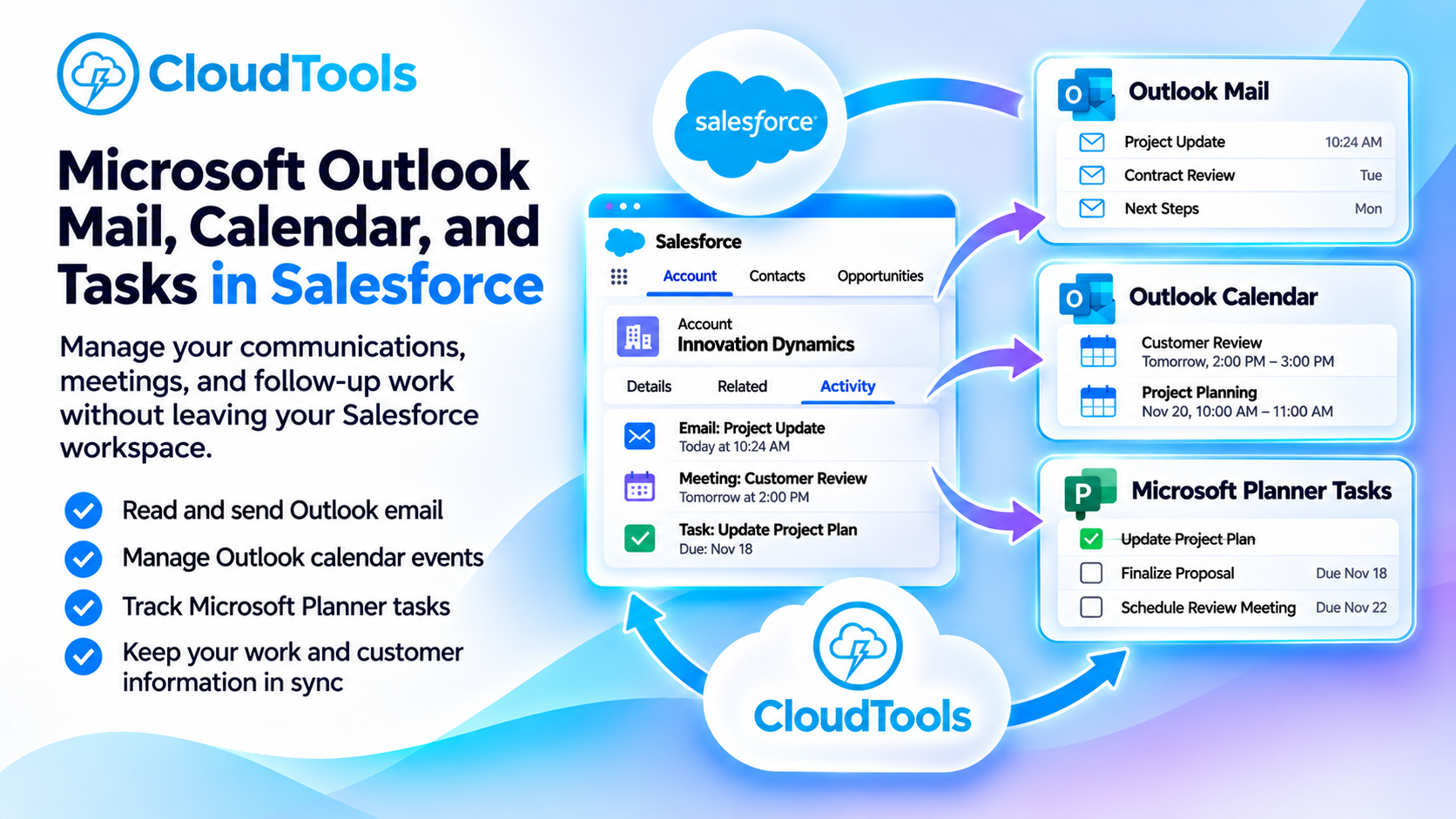
Manage your communications, meetings, and follow-up work without leaving your Salesforce workspace.
Your customer relationships and business processes live in Salesforce. Your email, appointments, and collaborative tasks live in Microsoft 365. CloudTools brings these environments together, giving users convenient access to Outlook Mail, Outlook Calendar, and Microsoft Planner directly from Salesforce Lightning pages.
With the ready-to-use M365 Essentials Lightning Web Component, users can read and send Outlook email, manage calendar events, and track Microsoft Planner tasks without constantly switching between applications.
Whether you're following up with a prospect, coordinating a customer meeting, or managing project deliverables, CloudTools makes Microsoft 365 integration with Salesforce part of your everyday workflow.
Outlook Mail, Calendar, and Planner inside Salesforce.
Make Salesforce and Microsoft Outlook Work Better Together
Salesforce provides the customer and business context your teams need. Microsoft Outlook and Planner provide essential tools for communication, scheduling, and managing work.
But when these applications operate separately, even simple activities can require repeated application switching.
A sales representative might review a customer record in Salesforce, open Outlook to respond to an email, switch to Calendar to schedule a meeting, and then open Planner to update a follow-up task.
CloudTools helps bring these activities together.
The M365 Essentials component embeds Microsoft 365 productivity features directly into Salesforce, allowing users to access their Outlook messages, calendar events, and Planner tasks from a single configurable interface.
The result is a more connected workspace that reduces unnecessary navigation and helps employees remain focused on customers and business priorities.
Three Powerful Microsoft 365 Productivity Experiences in Salesforce
CloudTools provides a unified Lightning component for accessing Outlook Mail, Outlook Calendar, and Microsoft Planner Tasks.
Administrators can enable the functions their users need, configure the Microsoft 365 connection, and add the component to Salesforce Lightning pages.
One component. Three ways to keep work moving.
Experience
What you can do
Where work stays
Outlook Mail
Read, compose, reply, forward, and work with supported attachments.
Your Microsoft 365 mailbox.
Outlook Calendar
Review appointments, create events, and manage supported meeting details.
Your Microsoft 365 calendar.
Planner Tasks
Create and assign tasks, set due dates, and update progress.
Microsoft Planner plans and buckets.
Available operations depend on Microsoft authorization, permissions, and the capabilities supported by each view.
Outlook Mail: Manage Email Directly from Salesforce
Keep customer communications close to the records and activities that matter.
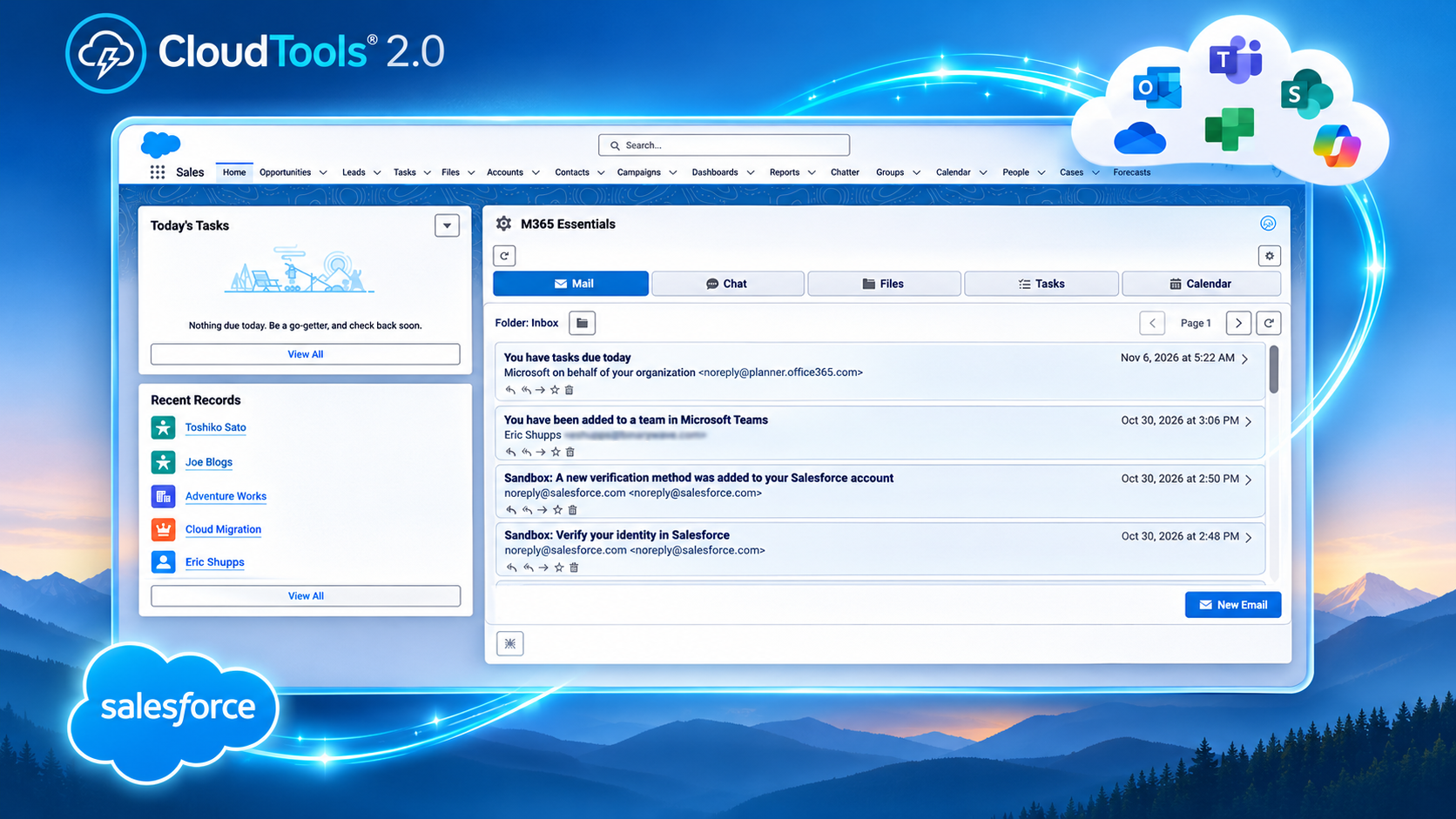
The Outlook Mail view allows users to access their Microsoft 365 mailbox directly from Salesforce.
Browse folders, read messages, review attachments, and compose new emails without opening a separate Outlook application.
CloudTools also supports Salesforce replacement tokens in new email fields, allowing administrators to incorporate supported Salesforce record values into recipients, subjects, and message bodies.
For example, a Salesforce user could compose an Outlook email addressed to the contact associated with the current Salesforce record without manually reentering the recipient's address.
Messages are sent through the configured Microsoft 365 connection and remain part of the user's Outlook mailbox.
Outlook Calendar: Manage Meetings and Appointments in Salesforce
Keep your schedule connected to your customer relationships.
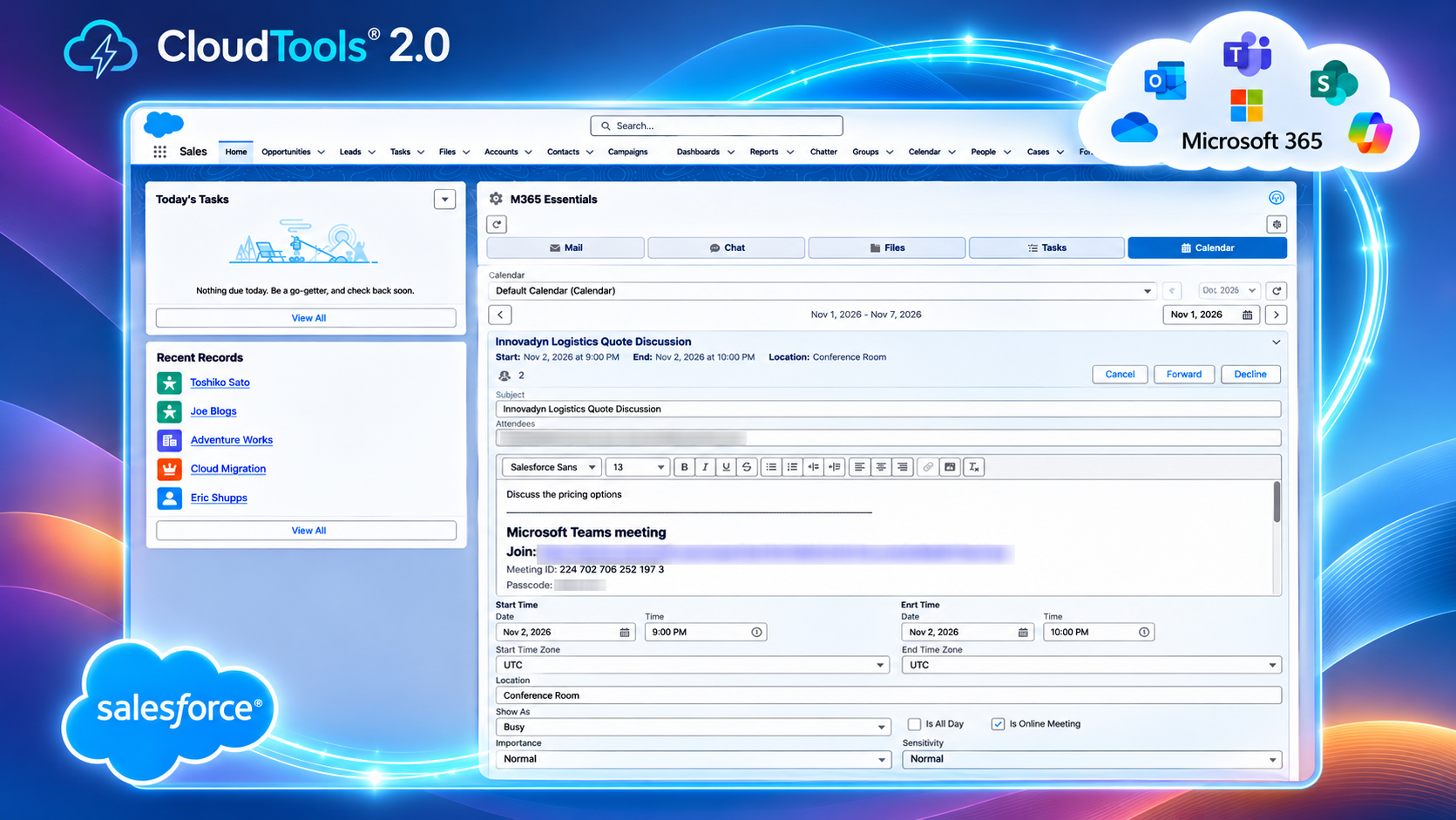
The Outlook Calendar view provides access to Microsoft 365 calendar events directly from Salesforce.
Users can review upcoming appointments, inspect meeting details, create new events, and manage supported calendar operations from their Salesforce workspace.
The component also displays available Microsoft Teams meeting information associated with Outlook calendar events.
This makes it convenient for Salesforce users to coordinate customer meetings, review scheduled activities, and manage appointments while working with CRM information.
Calendar changes are submitted directly to Microsoft 365, subject to the user's permissions and organizer or attendee role.
Microsoft Planner Tasks: Track Work and Follow-Ups
Manage Microsoft Planner tasks alongside your Salesforce activities.
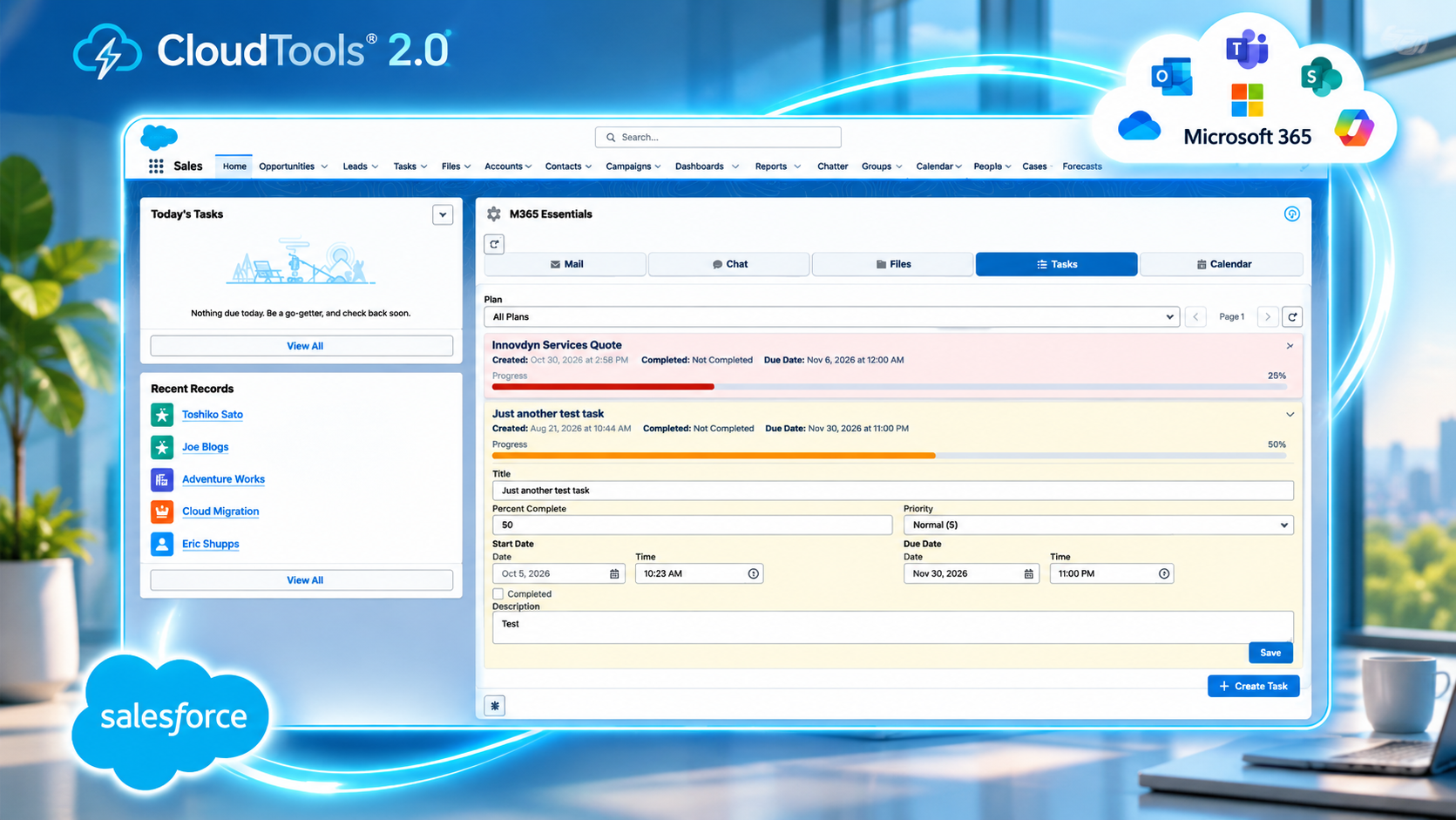
The Tasks view in M365 Essentials connects Salesforce users with Microsoft Planner, providing access to plans, tasks, progress, and assignments.
Users can review existing tasks, update task details, and create new Planner tasks without opening the Planner application.
For example, a sales team could review project-related Planner tasks while working with an opportunity in Salesforce, or create a new task to coordinate internal follow-up activities.
CloudTools updates Microsoft Planner directly, keeping task information in the Microsoft 365 environment where teams already manage collaborative work.
The component displays Microsoft Planner tasks rather than Salesforce Tasks or Microsoft To Do items.
Practical Benefits of Outlook and Planner Integration with Salesforce
Reduce Application Switching
Access Outlook Mail, Calendar, and Microsoft Planner directly from Salesforce. Spend less time moving between applications and more time working with customers and colleagues.
Keep Communications in Microsoft 365
CloudTools works with your existing Microsoft 365 mailboxes and calendars. Email messages and calendar events remain in Microsoft 365 rather than requiring a separate communication system.
Simplify Meeting Coordination
Review appointments, create events, and manage supported meeting details from Salesforce. Keep scheduling tools accessible while working with customer records and business activities.
Improve Task Visibility
Give users convenient access to Microsoft Planner tasks, deadlines, and progress without leaving their Salesforce workspace.
Extend Salesforce Without Custom Development
Add the prebuilt M365 Essentials Lightning Web Component to Salesforce pages and configure the functions your users need without developing a custom Outlook or Planner interface.
Make Microsoft 365 Productivity Part of Your Salesforce Workflow
CloudTools provides more than a convenient way to access Outlook and Planner.
Its Microsoft 365 connector actions allow Salesforce administrators and developers to incorporate supported email, calendar, and task operations into automated business processes and custom applications.
Using CloudTools connector services, organizations can build solutions that:
Send Outlook email as part of supported Salesforce business processes.
Create calendar events when business activities require meetings or appointments.
Retrieve supported Outlook message and calendar information.
Create and update Microsoft Planner tasks.
Coordinate work across Salesforce and Microsoft 365.
Build custom Lightning Web Components using Microsoft 365 integration services.
For example, a Salesforce Flow could send a notification when an opportunity reaches a particular stage or create a Planner task as part of a customer onboarding process.
Developers can also use CloudTools connector actions and APIs to build specialized Outlook, Calendar, and Planner experiences tailored to their business requirements.
How to Set Up Outlook Mail, Calendar, and Tasks in Salesforce
Getting started with Microsoft 365 productivity integration involves installing CloudTools, configuring Microsoft 365 access, and adding the M365 Essentials component to Salesforce.
Install CloudTools from AppExchange
Install CloudTools from Salesforce AppExchange and complete the initial license registration and configuration.
Your Salesforce administrator will need the appropriate permissions to install and configure the managed package.
Configure Microsoft 365 Access
Create or select a Microsoft 365 connector in CloudTools.
Configure the appropriate Microsoft authentication method and grant the permissions required for Outlook Mail, Calendar, and Microsoft Planner operations.
Delegated authorization is appropriate for operations performed under a signed-in Microsoft user's identity. Application-based authorization may support other operations when the necessary Microsoft permissions are available.
Add M365 Essentials to Salesforce
Open Salesforce Lightning App Builder and add the M365 Essentials component to the desired Lightning page.
The component provides an action strip for switching between its available Microsoft 365 functions.
Configure the Available Features
Select the Microsoft 365 connector and configure the appropriate Microsoft user context.
Administrators can choose which M365 Essentials functions are visible, including Mail, Calendar, and Tasks.
Additional settings control message retrieval, calendar queries, task discovery, sorting, and display limits.
Start Working with Microsoft 365
Once the component is configured and authorized, users can access Outlook Mail, Calendar, and Microsoft Planner from Salesforce.
Test the enabled functions with the intended Microsoft account and verify that the required read, send, create, and update permissions are available.
Can I access Microsoft Outlook directly from Salesforce?
Yes. CloudTools provides an M365 Essentials Lightning component that allows users to access Outlook Mail and Calendar directly from Salesforce pages.
Can I send Outlook emails from Salesforce?
Yes. The M365 Essentials Mail view supports composing and sending new Outlook messages, replying to existing messages, and forwarding emails through an appropriately authorized Microsoft 365 connection.
Can I use Salesforce record information in Outlook emails?
Yes. CloudTools supports replacement tokens in new email fields, allowing supported Salesforce record values to be incorporated into recipients, subjects, and message bodies.
Can I manage Outlook calendar events in Salesforce?
Yes. Users can review, create, and edit supported Outlook calendar events from the M365 Essentials component. Available operations depend on Microsoft 365 permissions and the user's role in each event.
Can I create Microsoft Teams meetings from Salesforce?
The Outlook Calendar view supports creating online meetings and displaying available Teams meeting information. The specific capabilities depend on the Microsoft 365 calendar configuration and permissions.
Does CloudTools integrate Microsoft Planner tasks or Salesforce Tasks?
The M365 Essentials Tasks view integrates Microsoft Planner. It does not display Salesforce Tasks or Microsoft To Do lists.
Can I create and assign Planner tasks from Salesforce?
Yes. The Tasks view supports creating Microsoft Planner tasks in available plans and buckets, assigning users, setting priorities, and managing supported task details.
Does CloudTools copy Outlook email and calendar data into Salesforce?
No. The standard M365 Essentials component retrieves and works with Microsoft 365 information through the configured connection. It does not automatically create Salesforce records containing copies of emails, events, or Planner tasks.
Custom integrations can implement additional data synchronization or storage operations when required.
Can I automate Outlook and Planner operations using Salesforce Flow?
Yes. CloudTools provides connector actions for supported Outlook and Microsoft Planner operations that can be incorporated into Salesforce Flow and custom integrations.
Available actions depend on Microsoft Graph permissions and the authentication model supported by each operation.
Is custom Apex development required?
No. The prebuilt M365 Essentials Lightning component can be configured without writing custom Apex.
Developers can also use CloudTools connector actions and APIs to create specialized Microsoft 365 integration solutions.
Bring Outlook, Calendar, and Tasks Together in Salesforce with CloudTools
Your teams already depend on Salesforce to manage customer relationships and Microsoft 365 to communicate, schedule meetings, and coordinate work.
CloudTools brings these capabilities together through configurable Lightning Web Components, powerful connector actions, and flexible integration services.
Give users convenient access to Outlook Mail, Calendar, and Microsoft Planner, simplify everyday productivity tasks, and create connected business processes across Salesforce and Microsoft 365.
Bring your Microsoft 365 productivity tools into Salesforce.
Ask our AI support assistant your questions about our platform, features, and services.
You are offline
What can I help you with?
We use cookies on our website to give you the most relevant experience by remembering your preferences and repeat visits. By clicking “Accept”, you consent to the use of ALL the cookies.
This website uses cookies to improve your experience while you navigate through the website. Out of these cookies, the cookies that are categorized as necessary are stored on your browser as they are essential for the working of basic functionalities of the website. We also use third-party cookies that help us analyze and understand how you use this website. These cookies will be stored in your browser only with your consent. You also have the option to opt-out of these cookies. But opting out of some of these cookies may have an effect on your browsing experience.
Necessary cookies are absolutely essential for the website to function properly. This category only includes cookies that ensures basic functionalities and security features of the website. These cookies do not store any personal information.
Any cookies that may not be particularly necessary for the website to function and is used specifically to collect user personal data via analytics, ads, other embedded contents are termed as non-necessary cookies. It is mandatory to procure user consent prior to running these cookies on your website.