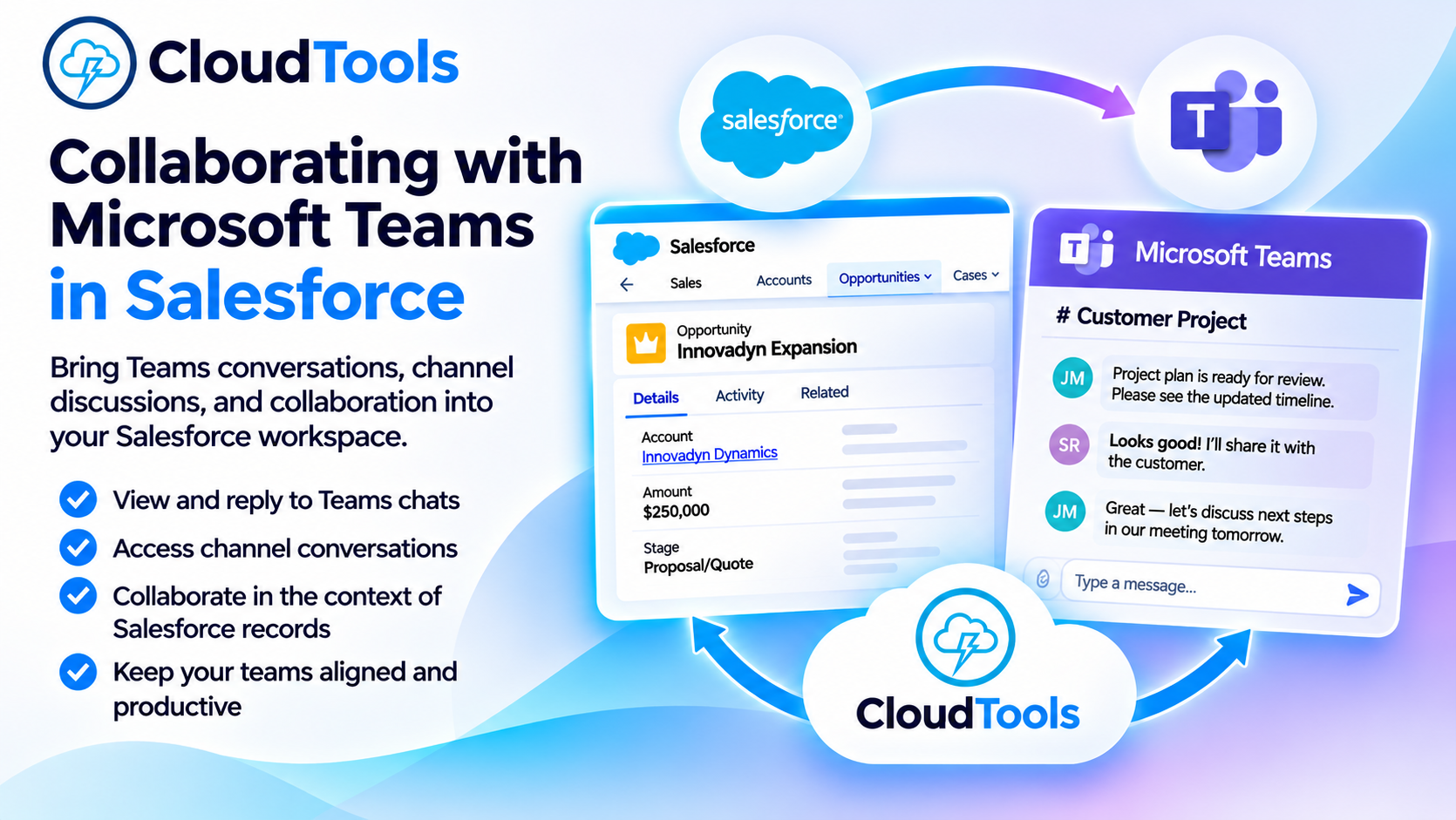
Connect Microsoft Teams and Salesforce with CloudTools 2.0. Access chats, collaborate on customer records, and bring Teams conversations into your CRM.
Integrate Microsoft Teams Collaboration into Salesforce
Keep your conversations connected to the customers, opportunities, and projects that matter.
Salesforce is where your teams manage customer relationships and business activities. Microsoft Teams is where they communicate, share information, and collaborate. CloudTools brings these environments together, making Microsoft Teams conversations accessible directly within Salesforce.
With ready-to-use Lightning Web Components, users can view Teams chats, participate in channel discussions, respond to messages, and collaborate with colleagues without constantly switching between applications.
Whether you're coordinating a sales opportunity, managing a customer engagement, or working with an internal project team, CloudTools makes Microsoft Teams integration with Salesforce a natural part of your daily workflow.
Make Salesforce and Microsoft Teams Work Better Together
Customer information and team conversations frequently live in different applications.
A sales representative might track an opportunity in Salesforce while discussing pricing with colleagues in Teams. A project manager might maintain customer records in Salesforce while coordinating implementation activities through Teams channels.
Moving between these systems creates unnecessary friction and makes it harder to maintain context.
CloudTools helps eliminate that disconnect by embedding Microsoft Teams collaboration capabilities within Salesforce Lightning pages.
Users can review conversations, respond to colleagues, and access relevant discussions alongside their Salesforce records. The result is a more connected workspace that helps teams spend less time navigating applications and more time moving business forward.
Two Ways to Use Microsoft Teams in Salesforce
Your needs
M365 Essentials
Teams Channel Chat
Conversation type
Existing personal and group Teams chats.
Discussions and threaded replies in a configured Teams channel.
Best fit
Everyday chats alongside email, files, tasks, and calendar events.
Shared account, opportunity, project, or departmental discussions.
Conversation selection
Users browse and select an existing chat.
Administrators select a team and channel, or use supported record-field tokens.
Interactive messaging
Send, reply, react, and make authorized edits or deletions with delegated access.
Post, reply, react, and make authorized edits or deletions with delegated access.
Choosing the Right Teams Component
Interactive capabilities depend on Microsoft permissions and policies. Other supported connection types can provide channel read access with links to continue conversations in Teams.
CloudTools provides two complementary Lightning Web Components for bringing Teams conversations into Salesforce.
M365 Essentials: Teams Chat Inside Salesforce
Your Microsoft Teams chats, accessible from your Salesforce workspace.
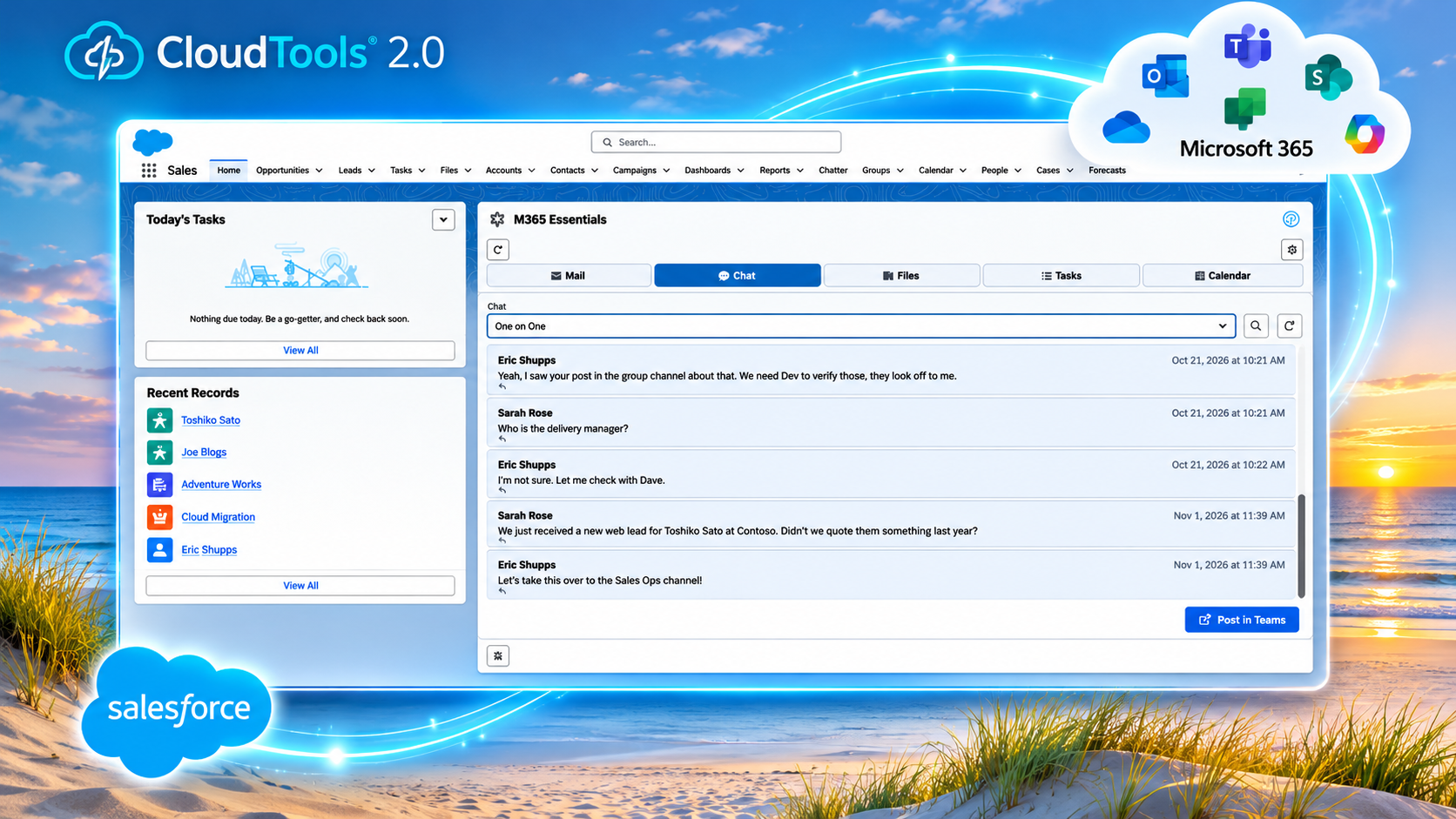
The M365 Essentials component combines several Microsoft 365 services into a single configurable Salesforce Lightning component, including Teams chats, Outlook email, OneDrive files, Planner tasks, and calendar events.
Its Teams Chat view allows users to select an existing Microsoft Teams conversation and review messages without leaving Salesforce.
With delegated Microsoft 365 authorization, users can also participate directly in conversations.
Supported Teams Chat capabilities include:
Browse and select existing Teams chats.
Read messages and review conversation history returned by Microsoft Teams.
Send new messages and reply to existing messages.
React to messages with supported reactions.
Edit or delete messages when authorized.
Refresh conversations to retrieve recent updates.
Administrators can configure the Microsoft 365 connection, user context, available features, and message retrieval settings to tailor the experience.
M365 Essentials is particularly useful for Salesforce users who want convenient access to everyday Microsoft 365 collaboration and productivity tools in one place.
M365 Teams Channel Chat: Collaboration Around Salesforce Records
Bring team and channel discussions directly into Salesforce.
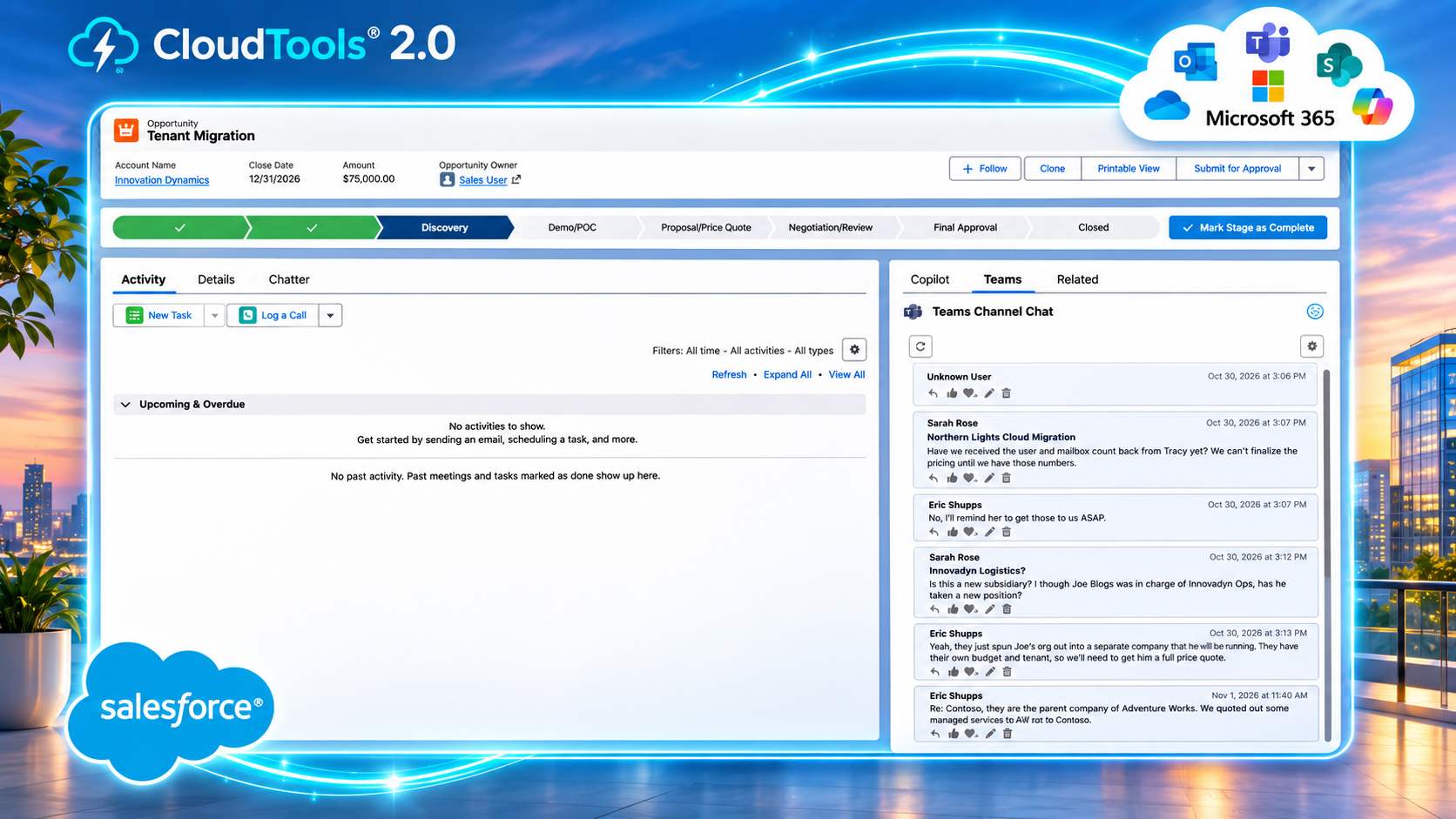
The M365 Teams Channel Chat component provides a dedicated interface for viewing conversations from a configured Microsoft Teams channel.
Unlike personal or group chats, Teams channels are designed for collaboration around shared topics, projects, departments, and business activities.
CloudTools allows administrators to display a selected Teams channel on a Salesforce Lightning page, making relevant discussions accessible where users manage their work.
Supported Teams Channel Chat capabilities include:
Display messages and threaded replies from a configured Teams channel.
Review message authors, timestamps, and reactions.
Post new channel messages using a rich-text editor.
Reply to existing channel conversations.
React to messages and perform permitted message edits or deletions.
Refresh the channel to retrieve updated discussions.
With delegated Microsoft authorization, users can interact with channel messages directly within Salesforce. Other supported connection types can provide read access with links to continue conversations in Microsoft Teams.
This component is ideal for organizations that want to connect Salesforce records with ongoing project, account, or departmental collaboration.
M365 Essentials Teams Chat componentTeams Channel Chat component
Connect Microsoft Teams Channels to Salesforce Records
1. Open a Salesforce recordStart with the account, opportunity, or project you are working on.
2. Resolve the Teams destinationConfigure static or record-field tokens to identify the relevant team and channel.
3. Join the relevant discussionView the channel in Salesforce and participate with delegated authorization.
One of the most powerful capabilities of CloudTools is the ability to dynamically select a Microsoft Teams channel based on the Salesforce record being viewed.
Instead of configuring a separate component for every customer or opportunity, administrators can use Salesforce field values to identify the appropriate Teams destination.
For example, an organization could maintain a Teams channel for each major customer account or implementation project.
When a user opens the corresponding Salesforce record, the Teams Channel Chat component can resolve the configured team and channel names and display the relevant conversation.
This approach helps organizations create contextual collaboration experiences without requiring custom Lightning component development.
Account management
Display discussions from a customer-specific Teams channel alongside the Salesforce Account.
Opportunity management
Give sales teams convenient access to internal conversations about proposals, pricing, and deal strategy.
Project coordination
Connect Salesforce project records with the Teams channels used for implementation and delivery.
Customer service
Make relevant internal support discussions accessible while reviewing customer cases.
Administrators can configure fixed Teams channels or use supported Salesforce record-field tokens to resolve the destination dynamically.
CloudTools provides the integration framework; your organization determines how Salesforce records and Microsoft Teams channels are associated.
Practical Benefits of Microsoft Teams Integration with Salesforce
Reduce Application Switching
Keep Microsoft Teams conversations accessible from the Salesforce pages your employees already use. Spend less time navigating between applications and more time working with customers and colleagues.
Improve Collaboration Around Customer Records
Give sales, service, and project teams convenient access to the discussions that support their work. Review relevant conversations while maintaining visibility into the corresponding Salesforce records.
Keep Teams Conversations in Microsoft 365
CloudTools works with Microsoft Teams rather than replacing it with a separate messaging system. Users interact with Teams conversations through Salesforce while Microsoft 365 continues to manage the underlying collaboration environment.
Extend Salesforce Without Custom Development
Add prebuilt CloudTools Lightning Web Components to Salesforce pages and configure their behavior using supported settings. Deliver connected collaboration experiences without building a Teams interface from scratch.
Go Beyond Chat with Microsoft Teams Automation
CloudTools also provides an extensive collection of Microsoft Teams connector actions for Salesforce automation and custom development.
These actions enable administrators and developers to incorporate supported Teams operations into Salesforce Flow, Apex applications, and custom Lightning Web Components.
Depending on the operation and its Microsoft authorization requirements, CloudTools can help automate activities involving:
Microsoft Teams and channel management.
Chat and conversation management.
Team and chat membership.
Supported messaging operations.
Microsoft Teams application and activity notifications.
For example, an organization could use Salesforce Flow to coordinate supported Teams operations when a new business process begins or create a custom Lightning component that interacts with Teams through CloudTools connector services.
CloudTools reduces the need to build every Microsoft Graph integration from the ground up, allowing developers to focus on business requirements rather than repetitive integration code.
For interactive Teams messaging within Salesforce, use OAuth Delegated (Authorization Code) authentication so operations can run under the authorized Microsoft user's identity.
Add a Teams Component to Salesforce
Open Salesforce Lightning App Builder and add either the M365 Essentials or M365 Teams Channel Chat component to the desired Lightning page.
Choose M365 Essentials for access to existing Teams chats alongside other Microsoft 365 productivity features, or Teams Channel Chat for discussions associated with a specific team and channel.
Configure Your Teams Experience
Select the Microsoft 365 connector and adjust the component settings.
For Teams Channel Chat, choose the desired team and channel or configure supported record-field tokens to select channels dynamically.
For M365 Essentials, enable the Chat view and configure the appropriate user context and conversation settings.
Start Collaborating
Once authorization and configuration are complete, users can access supported Microsoft Teams conversations from Salesforce.
Administrators can refine the experience by adjusting component settings, Salesforce page placement, and Microsoft 365 permissions.
Can I use Microsoft Teams directly inside Salesforce?
Yes. CloudTools provides Lightning Web Components that allow users to access Microsoft Teams chats and channel conversations directly from Salesforce pages.
Can I send Microsoft Teams messages from Salesforce?
Yes. With an appropriately configured delegated Microsoft 365 connection, users can send messages and replies through the CloudTools Teams components. Available operations depend on Microsoft permissions and policies.
Can I display a specific Teams channel on a Salesforce Account or Opportunity?
Yes. The Teams Channel Chat component can be configured to display a selected team and channel. Administrators can also use supported Salesforce record-field tokens to dynamically resolve the appropriate destination.
What's the difference between Teams Chat and Teams Channel Chat?
The M365 Essentials Chat view provides access to existing Microsoft Teams chats, including personal and group conversations.
The M365 Teams Channel Chat component displays messages from a configured Teams channel and supports channel-based collaboration.
Does CloudTools copy Teams messages into Salesforce?
No. The standard components retrieve and display Microsoft Teams conversations through the configured Microsoft 365 connection. They do not automatically create Salesforce records containing copies of those messages.
Can I automate Microsoft Teams operations using Salesforce Flow?
Yes. CloudTools provides Microsoft Teams connector actions for supported automation scenarios. The availability of individual operations depends on their Microsoft Graph permissions and authorization requirements.
Do users need Microsoft Teams licenses?
Users must have appropriate Microsoft 365 or Teams licensing and permissions for the operations they perform. CloudTools does not replace Microsoft's licensing or access requirements.
Is custom Apex development required?
No. The prebuilt Teams Lightning components can be configured without writing custom Apex. Developers can also use CloudTools connector services to create specialized Salesforce and Microsoft Teams integrations.
Bring Microsoft Teams and Salesforce Together with CloudTools
Your teams already depend on Salesforce to manage business relationships and Microsoft Teams to communicate and collaborate.
CloudTools brings those experiences together with configurable Lightning components, Microsoft Teams connector actions, and flexible integration services.
Keep conversations accessible, connect collaboration with Salesforce records, and give your teams a more productive way to work across Microsoft 365 and Salesforce.
Make collaboration part of your Salesforce experience.
Ask our AI support assistant your questions about our platform, features, and services.
You are offline
What can I help you with?
We use cookies on our website to give you the most relevant experience by remembering your preferences and repeat visits. By clicking “Accept”, you consent to the use of ALL the cookies.
This website uses cookies to improve your experience while you navigate through the website. Out of these cookies, the cookies that are categorized as necessary are stored on your browser as they are essential for the working of basic functionalities of the website. We also use third-party cookies that help us analyze and understand how you use this website. These cookies will be stored in your browser only with your consent. You also have the option to opt-out of these cookies. But opting out of some of these cookies may have an effect on your browsing experience.
Necessary cookies are absolutely essential for the website to function properly. This category only includes cookies that ensures basic functionalities and security features of the website. These cookies do not store any personal information.
Any cookies that may not be particularly necessary for the website to function and is used specifically to collect user personal data via analytics, ads, other embedded contents are termed as non-necessary cookies. It is mandatory to procure user consent prior to running these cookies on your website.