
16 Nov

Why Integrate Salesforce and Microsoft 365?
Salesforce and Microsoft 365 are two of the most widely used platforms in modern business. Salesforce helps organizations manage customer relationships, sales opportunities, and business processes, while Microsoft 365 provides the tools employees use to communicate, collaborate, manage documents, and organize their work.
But there’s a catch: these platforms don’t automatically work together in all the ways businesses need them to.
A sales representative might track an opportunity in Salesforce, exchange emails in Outlook, collaborate with colleagues in Teams, and store supporting documents in SharePoint. Each application performs its job well, but moving between them can create unnecessary work, fragmented information, and missed opportunities for automation.
That’s where Salesforce and Microsoft 365 integration comes in.
By connecting the two platforms, organizations can make information more accessible, streamline business processes, and create a more productive working environment.
This beginner’s guide explains how Salesforce and Microsoft 365 integration works, explores the most common integration approaches, and outlines the important considerations for building reliable, secure connections between the platforms.
The Benefits of Connecting Salesforce and Microsoft 365
At its simplest, integration allows two applications to exchange information or use each other’s capabilities.
Imagine a sales team working on a major customer opportunity. Salesforce contains the account information, opportunity details, and sales activities. Microsoft 365 contains the proposal documents, email conversations, Teams discussions, and project tasks.
Without integration, employees must manually navigate between these applications to find information and complete their work. With integration, organizations can create more connected experiences.
A Salesforce user might access SharePoint documents associated with an opportunity, send an Outlook email, review a Teams conversation, or create a Microsoft Planner task without leaving their CRM.
The benefits go beyond convenience.
Improved Productivity
Reducing unnecessary application switching helps employees remain focused on their work. Instead of repeatedly opening different applications, users can access relevant information and services from the environment where they’re already working.
Better Access to Information
Important business information often resides in different systems. Connecting Salesforce with SharePoint, OneDrive, Outlook, and Teams can make supporting information more accessible when users need it.
Reduced Manual Work
Integration enables automation across applications. Activities that previously required someone to copy information, create documents, send notifications, or update tasks can potentially be handled by automated workflows.
Greater Value from Existing Investments
Many organizations already pay for Salesforce and Microsoft 365. Integrating these platforms can help them take better advantage of capabilities they already own rather than introducing additional applications to solve problems created by disconnected systems.
What Can You Integrate Between Salesforce and Microsoft 365?
Microsoft 365 includes numerous applications and services, each offering different integration opportunities.
Some of the most useful combinations include:
Salesforce and Microsoft Outlook
Outlook integration can connect email and calendar activities with Salesforce business processes.
Common scenarios include:
- Sending Outlook emails based on Salesforce events.
- Accessing mailbox messages while working with Salesforce records.
- Creating calendar appointments from Salesforce.
- Retrieving meeting details and attendee information.
- Automating notifications and follow-up communications.
For example, when an opportunity reaches a particular stage, an automated process might send an Outlook notification to the account team.
To explore these capabilities in greater detail, see our guide to Microsoft Outlook Mail, Calendar, and Tasks in Salesforce.
Salesforce and Microsoft Teams
Microsoft Teams integration can connect business collaboration with customer and project information.
Potential scenarios include:
- Accessing Teams conversations from Salesforce.
- Displaying project-specific Teams channel discussions alongside Salesforce records.
- Creating Teams channels for new projects.
- Managing supported team and channel memberships.
- Sending supported notifications or messages to Teams.
Imagine opening a Salesforce opportunity and immediately seeing the internal Teams conversation about that deal. Rather than searching through multiple channels, the relevant discussion is available in the context of the business record.
Learn more about collaborating with Microsoft Teams in Salesforce and connecting channel discussions to customer records.
Salesforce and SharePoint
SharePoint integration is particularly valuable for organizations that manage significant volumes of customer and project documentation.
Common scenarios include:
- Accessing SharePoint document libraries from Salesforce.
- Uploading and downloading documents.
- Associating document libraries with Salesforce records.
- Managing document metadata.
- Creating folders or libraries through automated processes.
- Working with document versions and permissions.
For example, a new Salesforce project record could trigger the creation of a corresponding SharePoint folder or document library, providing a consistent location for project documentation.
Salesforce and OneDrive
OneDrive integration provides access to files stored in Microsoft 365.
Users might browse OneDrive documents from Salesforce, upload files, retrieve document information, or incorporate OneDrive file operations into automated processes.
While SharePoint is generally designed for shared organizational content, OneDrive is primarily intended for individual file storage and collaboration. Understanding that distinction is important when designing a document-management strategy.
For a closer look at both platforms, read about working with SharePoint and OneDrive in Salesforce.
Salesforce and Microsoft Planner
Planner integration can connect task management with Salesforce business activities.
Organizations might create Planner tasks when opportunities reach specific milestones, assign work to project team members, update task details, or review progress from a Salesforce interface.
These capabilities can be particularly useful when customer-facing teams manage relationships in Salesforce while delivery teams coordinate work through Microsoft Planner.
Salesforce and Microsoft 365 Copilot
AI introduces another integration opportunity.
Microsoft 365 Copilot can help authorized users discover and summarize information available through supported Microsoft 365 services.
By making Copilot capabilities accessible within Salesforce, organizations can create experiences where users ask questions, explore organizational knowledge, and retrieve supporting information without leaving their CRM.
However, Copilot integration requires careful attention to Microsoft licensing, authorization, available APIs, and data access. It is also important to distinguish Microsoft 365 Copilot’s access to Microsoft 365 information from access to Salesforce records, which generally requires additional integration logic.
Explore the opportunities and considerations involved in using Microsoft 365 Copilot in Salesforce.
How Does Salesforce and Microsoft 365 Integration Actually Work?
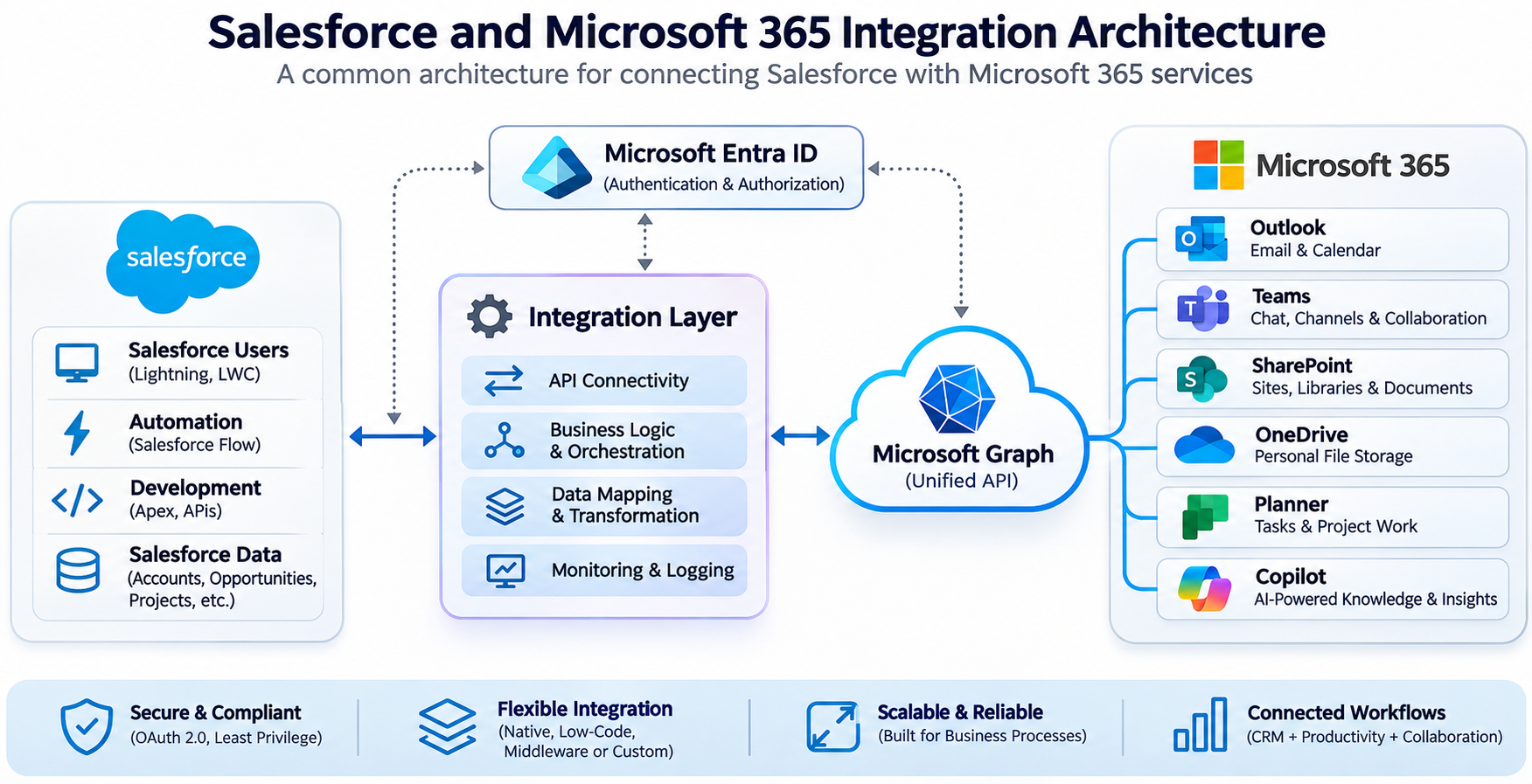
Before comparing integration options, it helps to understand the basic architecture.
Salesforce and Microsoft 365 are separate cloud platforms. Each maintains its own data, security model, application services, and programming interfaces.
To connect them, an integration solution needs a way to communicate with both platforms.
The most common approach involves Application Programming Interfaces (APIs).
An API allows one application to request information or perform an operation in another application using a defined set of commands.
For Microsoft 365, the primary integration interface is Microsoft Graph.
Architecture Diagram: Connecting Salesforce and Microsoft 365
Understanding Microsoft Graph
Microsoft Graph is Microsoft’s unified API for accessing data and services across Microsoft 365 and other Microsoft cloud services.
Through Microsoft Graph, authorized applications can interact with services such as:
- Outlook mail and calendars.
- Microsoft Teams.
- SharePoint and OneDrive.
- Microsoft Planner.
- Microsoft Entra ID.
- Other supported Microsoft 365 resources.
For example, an application can use Microsoft Graph to retrieve files from OneDrive, create a calendar event, or perform a supported Teams operation.
Salesforce provides its own APIs and development tools for accessing Salesforce data and implementing business logic.
An integration connects these capabilities, allowing Salesforce processes or user interfaces to interact with Microsoft 365 services.
Authentication and Authorization
Before an application can access Microsoft 365, it must establish its identity and obtain the necessary permissions.
Microsoft commonly uses OAuth 2.0 and Microsoft Entra ID to manage this process.
Two important authorization models are:
Delegated permissions: The application operates on behalf of a signed-in user. Access depends on the permissions granted to the application and the user’s own access rights.
Application permissions: The application operates using its own identity, without a signed-in user. Access is controlled by the application permissions granted in Microsoft Entra ID and any applicable resource-level restrictions.
This distinction matters because not every Microsoft Graph operation supports both models.
For example, certain interactive Teams messaging and Copilot operations require delegated authorization, while many administrative and background automation scenarios can use application permissions.
Selecting the appropriate authentication model is one of the most important early integration decisions.
Microsoft provides additional guidance in its Microsoft Graph permissions overview.
Four Common Ways to Integrate Salesforce and Microsoft 365
There isn’t one universally correct approach to integration.
The best choice depends on what you’re trying to accomplish, your technical resources, security requirements, and the complexity of the business processes involved.
Comparing Integration Approaches
| Approach | Complexity | Flexibility | Maintenance | Best Suited For |
|---|---|---|---|---|
| Native Integration | Low | Limited to supported features | Generally low | Common, straightforward integration needs |
| Low-Code Automation | Low to moderate | Moderate to high | Moderate | Repeatable business processes and workflow automation |
| Integration Platforms and Middleware | Moderate | High within platform capabilities | Moderate; some responsibilities managed by provider | Multiple integrations requiring reusable services |
| Custom API Integration | High | Very high | High | Specialized applications and complex requirements |
These comparisons are general guidelines. Actual complexity, flexibility, and maintenance requirements depend on the selected tools, licensing, and integration architecture.
Option 1: Native Integration Features
The simplest place to start is with integration capabilities already provided by Salesforce or Microsoft.
For example, Salesforce offers Outlook integration features that support certain email and productivity scenarios.
Native integrations are often relatively easy to configure and may provide a good solution for common requirements.
Advantages:
- Relatively straightforward configuration.
- Less custom development.
- Supported functionality from the platform vendors.
- Potentially lower implementation and maintenance effort.
Limitations:
- Capabilities may be restricted to specific scenarios.
- Advanced customization may not be available.
- Features may require additional licensing.
- Native integrations may not address broader cross-platform automation requirements.
Best suited for: Organizations with straightforward integration needs that are covered by existing platform functionality.
Option 2: Low-Code Automation
Low-code tools allow administrators and business application specialists to build integrations using visual designers rather than traditional programming.
Two important options are Salesforce Flow and Microsoft Power Automate.
Salesforce Flow enables automation within the Salesforce environment. Power Automate provides workflows and connectors across Microsoft 365, Salesforce, and numerous other services.
For example, a Power Automate flow might respond to a Salesforce record change and create a SharePoint folder.
Alternatively, a Salesforce Flow could invoke an external integration service to perform a Microsoft 365 operation.
Advantages:
- Visual development environments.
- Faster implementation for common business scenarios.
- Reusable actions and connectors.
- Accessible to administrators with limited programming experience.
Limitations:
- Connector availability and licensing vary.
- Some operations require additional configuration or custom connectors.
- Complex workflows can become difficult to maintain.
- Authentication and permissions still require careful planning.
- Platform limits and execution constraints can affect design decisions.
Best suited for: Organizations automating repeatable business processes with limited custom development.
Option 3: Integration Platforms and Middleware
Integration platforms provide reusable services that connect applications without requiring developers to implement every API interaction themselves.
Depending on the product, these platforms may provide prebuilt connectors, workflow actions, authentication management, data transformation, monitoring, and reusable integration services.
Some solutions focus on connecting entire business processes, while others provide specialized capabilities for accessing particular platforms or APIs.
For example, a middleware service might expose Microsoft 365 document operations to Salesforce through reusable actions that administrators can invoke from Salesforce Flow.
Advantages:
- Reusable integration capabilities.
- Reduced need for custom API development.
- Centralized management of supported connections.
- Potentially faster delivery of complex integrations.
- Opportunities to standardize integration patterns.
Limitations:
- Additional licensing or subscription costs.
- Dependence on an external platform.
- Available functionality varies between providers.
- Security and data-processing arrangements require evaluation.
- Some specialized requirements may still need custom development.
Best suited for: Organizations with multiple integration requirements that want reusable capabilities and consistent management.
Option 4: Custom API Integration
Organizations with specialized requirements can develop their own integrations using Salesforce development tools and Microsoft Graph.
A custom solution might use Salesforce Apex to invoke Microsoft Graph APIs, or use an external service hosted in Microsoft Azure to coordinate operations between Salesforce and Microsoft 365.
Developers can also create Lightning Web Components that provide custom user experiences backed by secure integration services.
Advantages:
- Greater control over functionality.
- Highly customized user experiences.
- Flexibility to address specialized requirements.
- Direct control over integration architecture.
Limitations:
- Requires experienced developers.
- Higher initial implementation effort.
- Ongoing maintenance of authentication and API integrations.
- Responsibility for error handling, monitoring, and security.
- Exposure to changes in Microsoft and Salesforce APIs.
Best suited for: Organizations with complex or highly specialized requirements that cannot be met adequately by existing integration tools.
Salesforce provides architecture guidance and implementation patterns through the Salesforce Architecture Center.
Choosing the Right Integration Approach
A useful starting point is to ask five questions.
1. What Business Problem Are We Solving?
Avoid starting with a particular technology. Identify the business process, the users involved, and the information or operations that need to cross platform boundaries.
2. Is the Integration Interactive or Automated?
An interactive integration might allow a user to browse SharePoint files from a Salesforce page.
An automated integration might create a SharePoint folder whenever a new project record is created.
These scenarios may require different architectures and authentication models.
3. How Much Customization Is Required?
If an existing connector supports the operation, custom development may be unnecessary.
If the requirement involves specialized interfaces, complex business rules, or unsupported APIs, a custom solution may be more appropriate.
4. Who Will Maintain the Integration?
A solution built by developers may be difficult for business administrators to maintain. Conversely, a complex visual workflow may become challenging to troubleshoot without technical expertise.
Choose an approach that aligns with your organization’s long-term support capabilities.
5. What Are the Security and Compliance Requirements?
Consider which users and applications can access information, where credentials are stored, how permissions are granted, and whether information must be transferred or retained outside its original platform.
Security requirements should influence the architecture from the beginning rather than being addressed after implementation.
Best Practices for Salesforce and Microsoft 365 Integration
Regardless of the integration method, several principles can improve reliability, security, and maintainability.
1. Start with a Specific Business Scenario
Rather than attempting to connect everything at once, begin with a clearly defined use case.
For example, automatically creating a SharePoint folder when a new Salesforce project is created is a manageable starting point.
It provides an opportunity to validate authentication, permissions, data mapping, and error handling before introducing more complex processes.
2. Apply the Principle of Least Privilege
Grant integrations only the permissions required to perform their intended operations.
Avoid assigning broad Microsoft Graph permissions simply because they make initial development easier.
Review delegated and application permissions carefully, and consider resource-scoped access controls where supported.
3. Avoid Unnecessary Data Duplication
Not every integration requires copying information between systems.
In many cases, it is more practical to access documents, conversations, or tasks directly from their original platforms.
For example, displaying SharePoint documents within Salesforce may be preferable to storing duplicate copies in Salesforce Files.
This approach can reduce storage overhead and avoid synchronization problems.
4. Plan for API Limits and Temporary Failures
Cloud APIs are not guaranteed to respond successfully to every request.
Microsoft Graph and Salesforce both enforce service limits and may return errors when requests are throttled or resources are temporarily unavailable.
Reliable integrations should account for:
- API throttling and rate limits.
- Transient network failures.
- Retry policies and backoff.
- Request timeouts.
- Duplicate processing.
- Logging and operational monitoring.
For example, retrying a failed operation without checking whether the original request succeeded could accidentally create duplicate records or documents.
Microsoft provides guidance on handling Microsoft Graph throttling, including retry behavior and the use of response headers.
5. Use Asynchronous Processing When Appropriate
Not every integration should execute while a user waits for a response.
Long-running operations, high-volume data transfers, and multi-step processes may be better suited to asynchronous processing.
Salesforce and Azure both provide mechanisms for background processing, allowing integration workloads to run without unnecessarily delaying interactive business operations.
6. Establish Clear Ownership of Data
When two platforms share information, determine which system is authoritative.
For example, Salesforce might own customer account information, while SharePoint owns project documents and their metadata.
Without clear ownership, bidirectional synchronization can introduce conflicting updates and inconsistent information.
7. Monitor Integrations After Deployment
Successful deployment is only the beginning.
Production integrations should provide sufficient visibility to identify failed requests, authentication problems, performance issues, and unexpected behavior.
Monitoring and alerting are especially important for unattended business processes, where failures may otherwise go unnoticed.
Common Integration Mistakes to Avoid
Several recurring mistakes can make Salesforce and Microsoft 365 integrations more complicated than necessary.
- Trying to synchronize everything. Moving large amounts of information between systems introduces complexity. Consider whether users actually need copies of the data or simply access to it.
- Ignoring authentication limitations. Some Microsoft Graph operations require a signed-in user, while others support application-only access. Choosing the wrong model can prevent an otherwise well-designed integration from working.
- Building custom code for standard operations. Before implementing a custom API client, evaluate whether native features, connectors, or integration services already support the requirement.
- Overlooking ongoing maintenance. Integrations depend on APIs, permissions, application configurations, and business processes that can change over time.
- Treating security as an afterthought. Credentials, permissions, consent, and access boundaries should be part of the original design.
Avoiding these mistakes can significantly reduce implementation effort and long-term support costs.
A Simple Salesforce and Microsoft 365 Integration Example
Let’s consider a practical scenario.
An organization uses Salesforce to manage customer projects and SharePoint to store project documentation.
Whenever a new project is created in Salesforce, the organization wants a corresponding folder created in SharePoint.
A basic integration could work as follows:
Step 1: A Salesforce Project Is Created
A user creates a project record containing the customer name, project identifier, and other relevant information.
Step 2: Salesforce Starts an Automated Process
A record-triggered Salesforce Flow detects the new project and initiates an integration action.
Step 3: The Integration Accesses Microsoft 365
Using an authorized Microsoft 365 connection, the integration invokes the appropriate Microsoft Graph operation.
Step 4: SharePoint Creates the Project Folder
The integration creates a folder in the designated document library using a consistent naming convention.
Step 5: Salesforce Stores the Reference
The integration returns the SharePoint folder identifier or URL, which Salesforce can store against the project record.
Step 6: Users Access the Documents
Employees can use the stored link or an embedded document-management interface to access the project files.
This relatively simple scenario illustrates several important integration concepts: event-driven automation, API communication, authentication, data mapping, and maintaining references between systems.
It also demonstrates why an integration doesn’t always need to synchronize the underlying documents. Salesforce can maintain the business relationship while SharePoint continues to manage the files.
Where Does AI Fit into Salesforce and Microsoft 365 Integration?
Artificial intelligence is creating new opportunities for connecting business applications.
Traditional integrations generally move data or perform specific operations. AI-enabled integrations can also help users interpret information, generate summaries, and interact with organizational knowledge using natural language.
For example, a Salesforce user might ask an AI assistant to summarize a project status report stored in SharePoint or identify relevant information from Microsoft 365 content.
However, integrating AI introduces additional considerations.
Organizations must understand which information an AI service can access, how user permissions are enforced, what data is included in prompts, and how generated responses are validated.
AI also doesn’t eliminate the need for conventional integration architecture. Authentication, authorization, API access, monitoring, and data governance remain essential.
The most effective solutions combine AI capabilities with reliable access to trusted business information.
Getting Started with Salesforce and Microsoft 365 Integration
If your organization is exploring integration for the first time, there’s no need to begin with a large transformation project.
Start by identifying a small number of activities where employees regularly move between Salesforce and Microsoft 365.
Look for repetitive tasks, information-access challenges, and processes that require manual coordination between applications.
Then evaluate the available integration options against those requirements.
A native integration might be sufficient for straightforward Outlook scenarios. Low-code automation may be appropriate for repeatable business processes. Integration platforms can provide reusable capabilities across multiple services, while custom development offers greater flexibility for specialized requirements.
The important thing is to choose an approach that solves the immediate business problem while providing a reliable foundation for future integration.
Bringing It All Together
Salesforce and Microsoft 365 are powerful platforms individually, but organizations can unlock additional value by making them work together.
Whether the objective is accessing SharePoint documents, collaborating through Teams, managing Outlook communications, automating Planner tasks, or introducing AI-powered knowledge experiences, integration helps connect the applications employees rely on every day.
There is no single architecture that works for every organization. The right solution depends on business requirements, technical capabilities, security considerations, and long-term maintenance needs.
By starting with practical use cases, selecting appropriate integration tools, and following sound architectural principles, organizations can build connected experiences that improve productivity without introducing unnecessary complexity.
The goal isn’t simply to connect Salesforce and Microsoft 365. It’s to make the two platforms work together in ways that make people’s jobs easier.